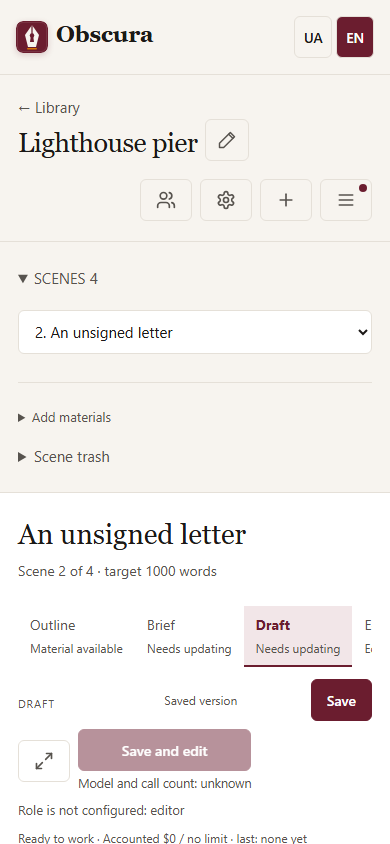
Workspace and scene stages
The story workspace has three parts: the scene list on the left, the scene editor in the middle and the scene sections on the right. On a narrow screen they stack one under another.
If there are many scenes, click the Scenes heading with their count: the list collapses, and Add materials stays nearby. The current scene and unsaved text are kept.
Delete and restore a scene
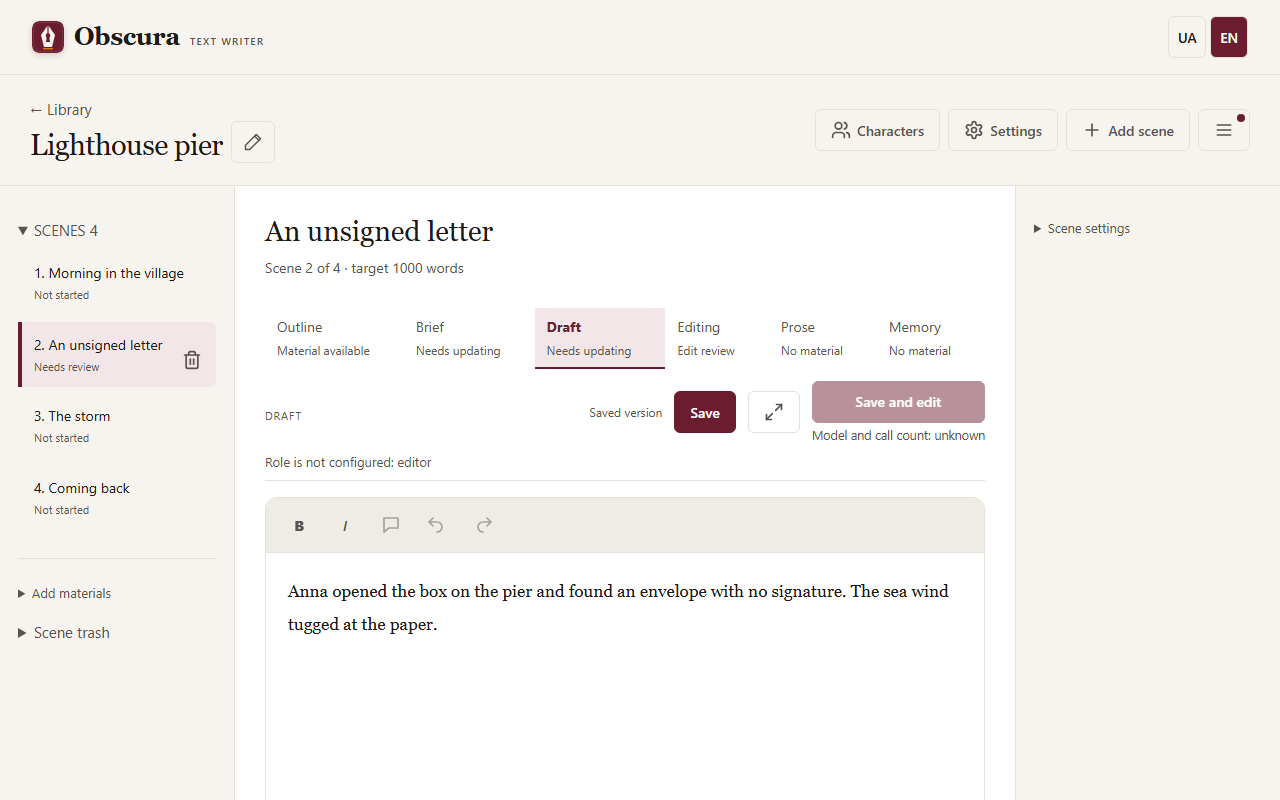
- In the scene list, the selected scene has a button with a trash icon: Delete scene. The app asks for confirmation and moves the scene to the scene trash; the following scenes will then need review.
- Save your text first: with unsaved changes the scene is not deleted and the app tells you why.
- To bring a scene back, expand Scene trash under the list and click Restore. Scenes are never deleted permanently.
- On a narrow screen there is no scene list: pick the scene in the selector and click Delete scene in the extra actions under the editor.
Top row
- Characters opens the character cards on a separate page.
- Settings opens the models, writing, evaluator and budget for this story.
- Add scene creates a scene right after the open one (at the end of the list if no scene is open) and fills its outline from a template right away. Location, characters, key realisation and emotional focus are carried over from the previous scene's outline; its "End" becomes the "Start" of the new scene, and its "What happens" becomes "Previously". "End", "What happens" and the three "Beats" items stay empty. The number in the heading is the new scene's place in the list; the numbers in the outlines of the following scenes move on. A scene added at the end gets the number after the previous scene's number. In a Ukrainian story the outline labels are Ukrainian. Whatever the previous outline lacks stays empty; you can correct everything in the outline straight away.
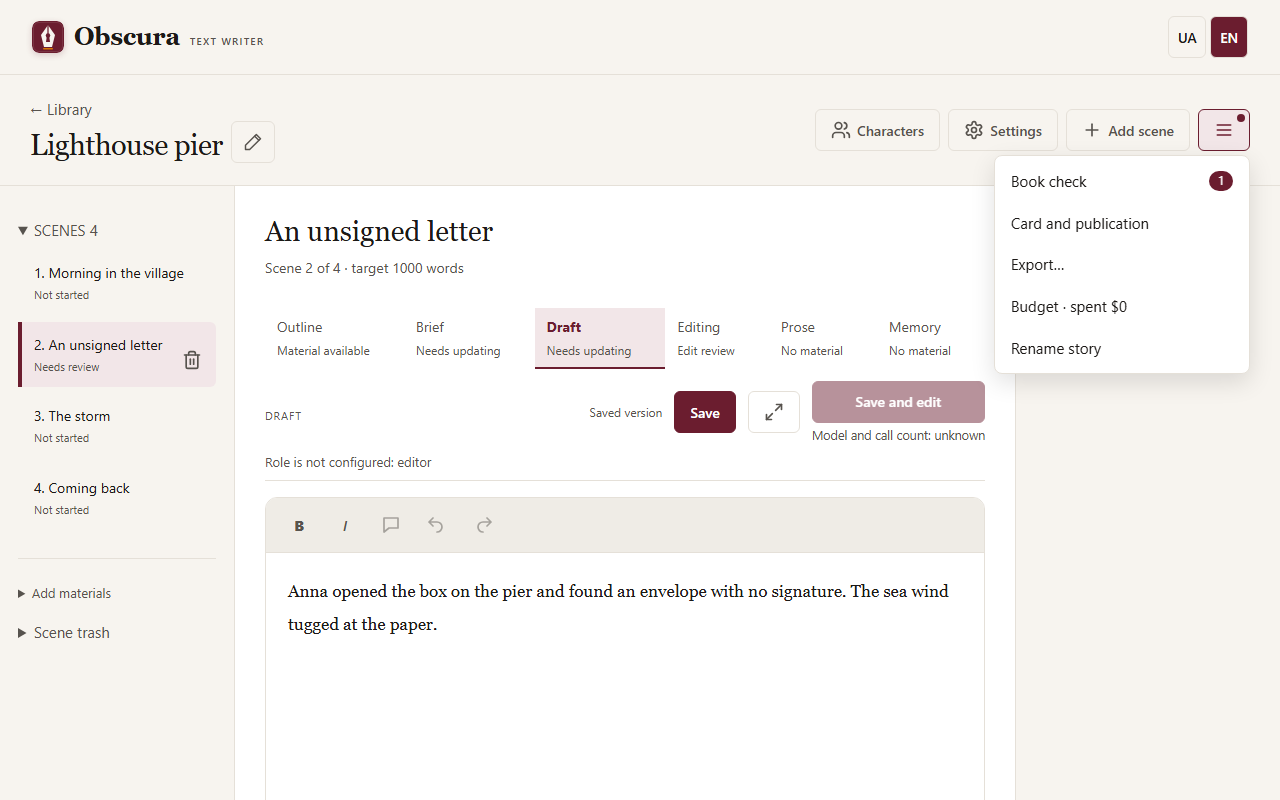
- The ☰ Story actions menu holds everything that concerns the whole story: Book check (the number next to it counts materials waiting for review), Card and publication, Export…, story evaluation and reports (when an evaluator is configured), the budget line and Rename story. The menu works from the keyboard;
Escapecloses it.
Change the scene order
- Open a scene and press Move up or Move down in Scene settings. Each press moves the scene by one place.
- Save the text first: a scene with unsaved edits does not move.
- After a move the story's texts need review: what the model knows from earlier scenes depends on the order.
- The number in the first line of the outline ("Scene 3: …") becomes the scene's number in the list. Only the number changes; a saved outline gets a new version and the previous one stays in the history. Scenes without a number in the outline (a prologue, an interlude) get no number but keep their place. The same happens when a scene is inserted in the middle, moved to the trash or restored.
- In a story with parts and arcs these buttons cannot move a scene into another arc: use the book structure.
Scene stages
The Outline → Brief → Draft → Editing → Prose → Memory tabs show the scene materials and their state: "No material", "Material available", "Needs updating". A tab only opens the material; the primary button above the text starts the action.
If the planner reports "Significant changes require the author’s decision", the Brief tab opens a new proposal with a list of changes. Review it, save your manual edits and press Accept brief; Save keeps the proposal without accepting it.
Before you press it, the primary button shows the model and the maximum number of calls. Hover over it or reach it with Tab to see details and warnings. If a role is not configured, a button next to it takes you to that role in the settings.
Status row
Only the stage tabs and the row with Save and the primary action stay pinned at the top. The same place shows why the primary action is unavailable, the mark for text from an external client and the warning that the material changed elsewhere. Below the scene text you see the note about the primary action, the scene status, the run progress and the pause, cancel, continue and repeat buttons. When a run waits for your decision (review, choosing a variant, pause, failure), the pinned row shows a Decision needed ↓ link that scrolls to the buttons. The run progress takes one line: the state, the models, the cost in dollars (total / last call) and a ⚠ mark when there is a warning. The provider's usage details are in the tooltip on the cost. Click that line to see the plan, warnings and stages, and click again to hide them. A failed run shows its error right away. Run options sets the limit for the next run. Run remaining scenes runs the remaining scenes one after another. Pause takes effect between stages; closing the tab does not cancel the work, and cancelling does not guarantee that the provider stops answering at once. Check one scene first, as described in Your first story. When a sequential impact review waits for your decision, its card appears below the status row, and the Decision needed ↓ link leads to it.
Editor
Draft and Prose have a formatting toolbar: B (Ctrl+B), I (Ctrl+I), undo (Ctrl+Z) and redo (Ctrl+Y). Save creates a new version and does not erase earlier ones. Pasting brings in plain text only. The browser warns you before you leave with unsaved edits.
The editor remembers the last scene and tab separately for each story in this browser.
The Full screen button in the row with Save spreads the text over the whole app window: the header, scene list, right panel, tabs and status row are hidden, and Save and Exit full screen remain. Leave with that button or the Esc key. The mode works on any tab; to run a stage or open another scene, leave it first.
Scene sections
On the right, the Scene settings section (participants, word target, scene age rating) and the Scene evaluation section collapse and remember their state. Evaluation is hidden when the evaluator is off.
On a phone the sections go below the editor, and the top-row buttons show icons only.